Setting up a Reg.CA Email Account on the iPhone
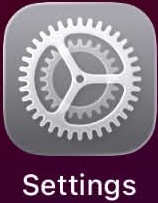
Go to your iPhone Settings:
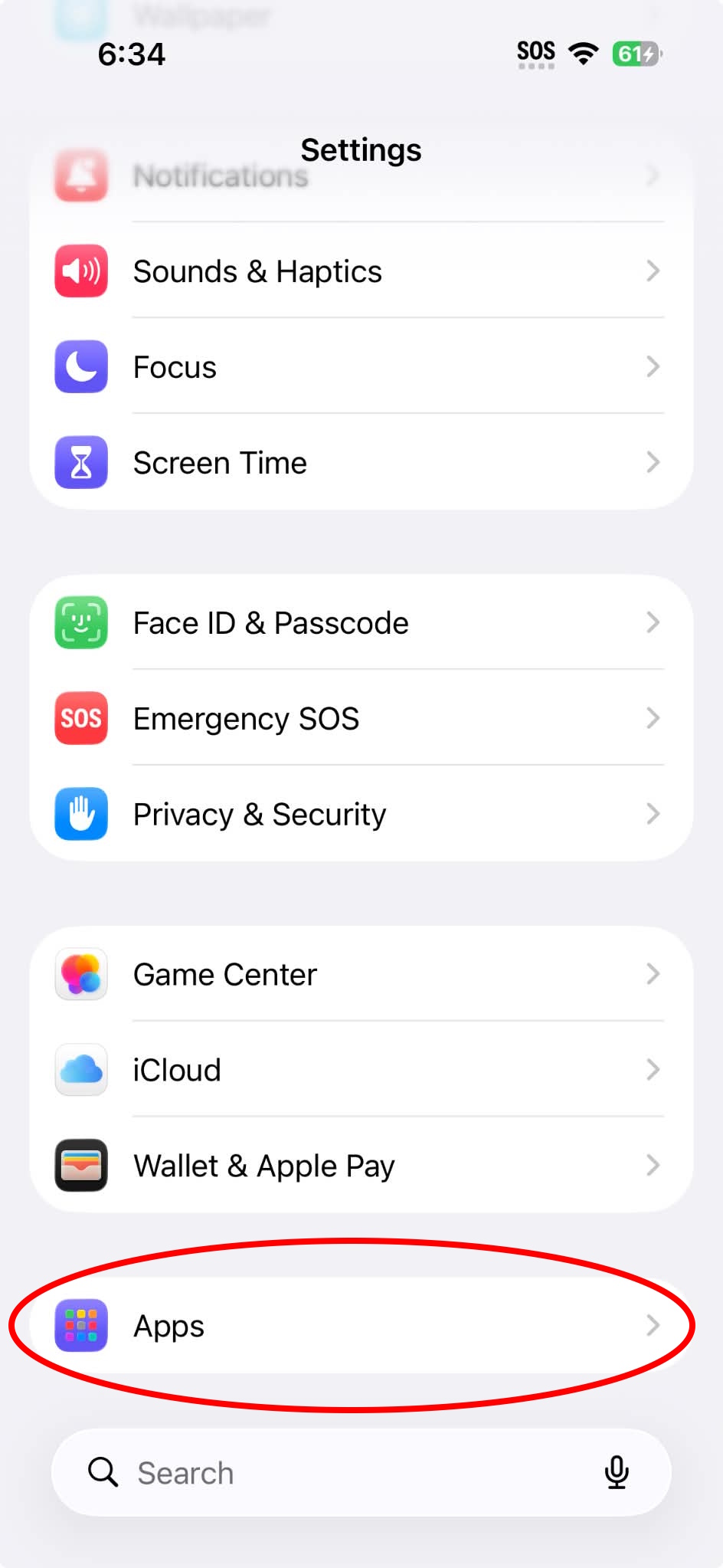
Scroll to the bottom, and clicks "Apps"
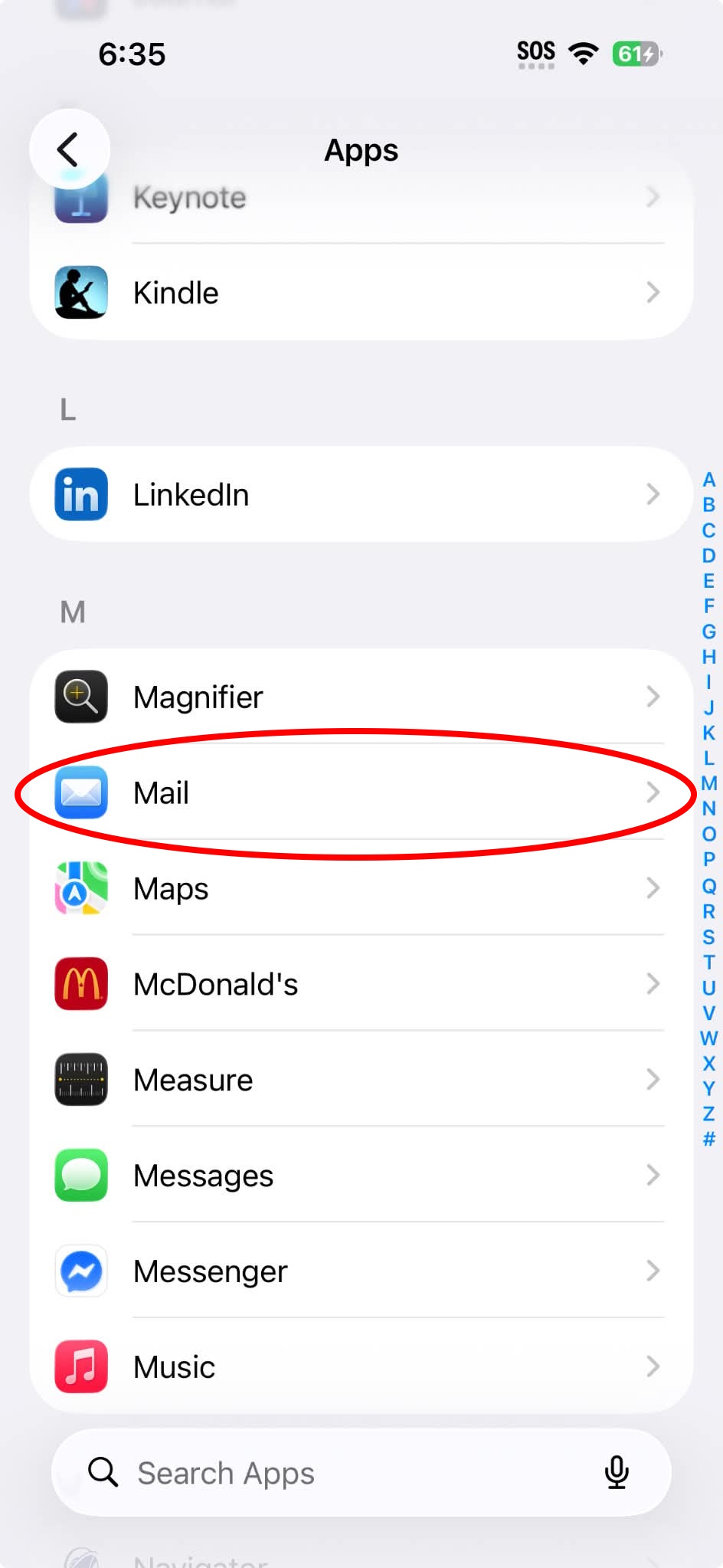
Scroll down and click "Mail"
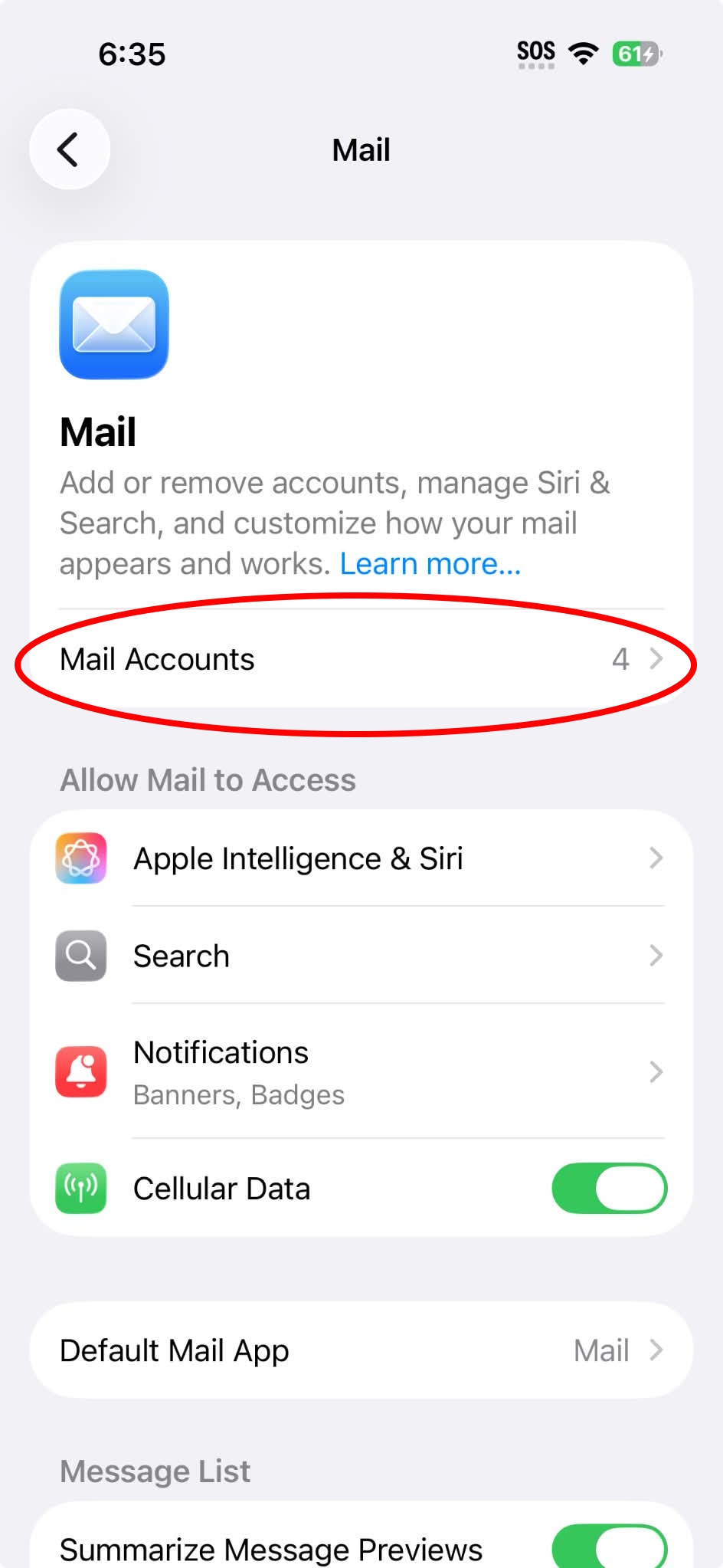
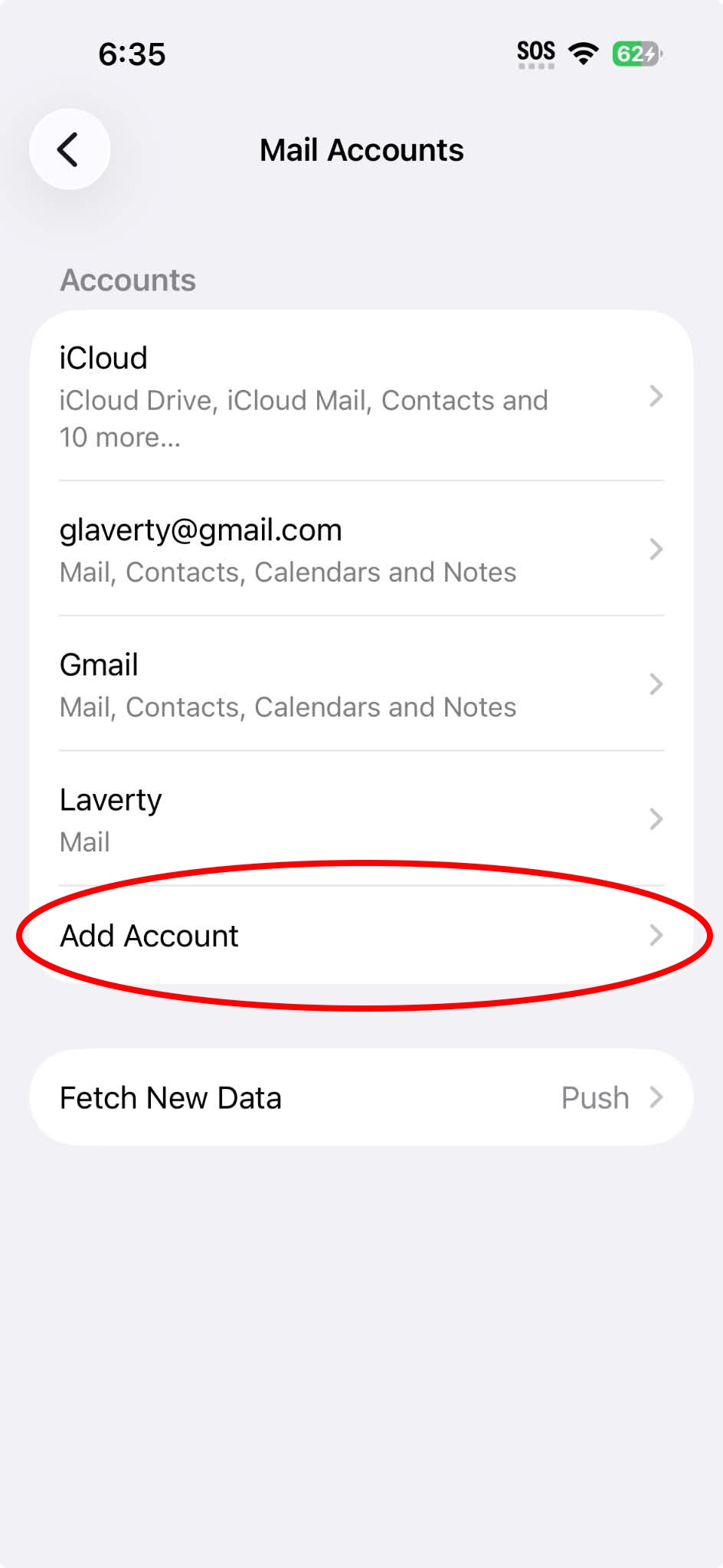
Click "Mail Accounts"
Click "Add Account"
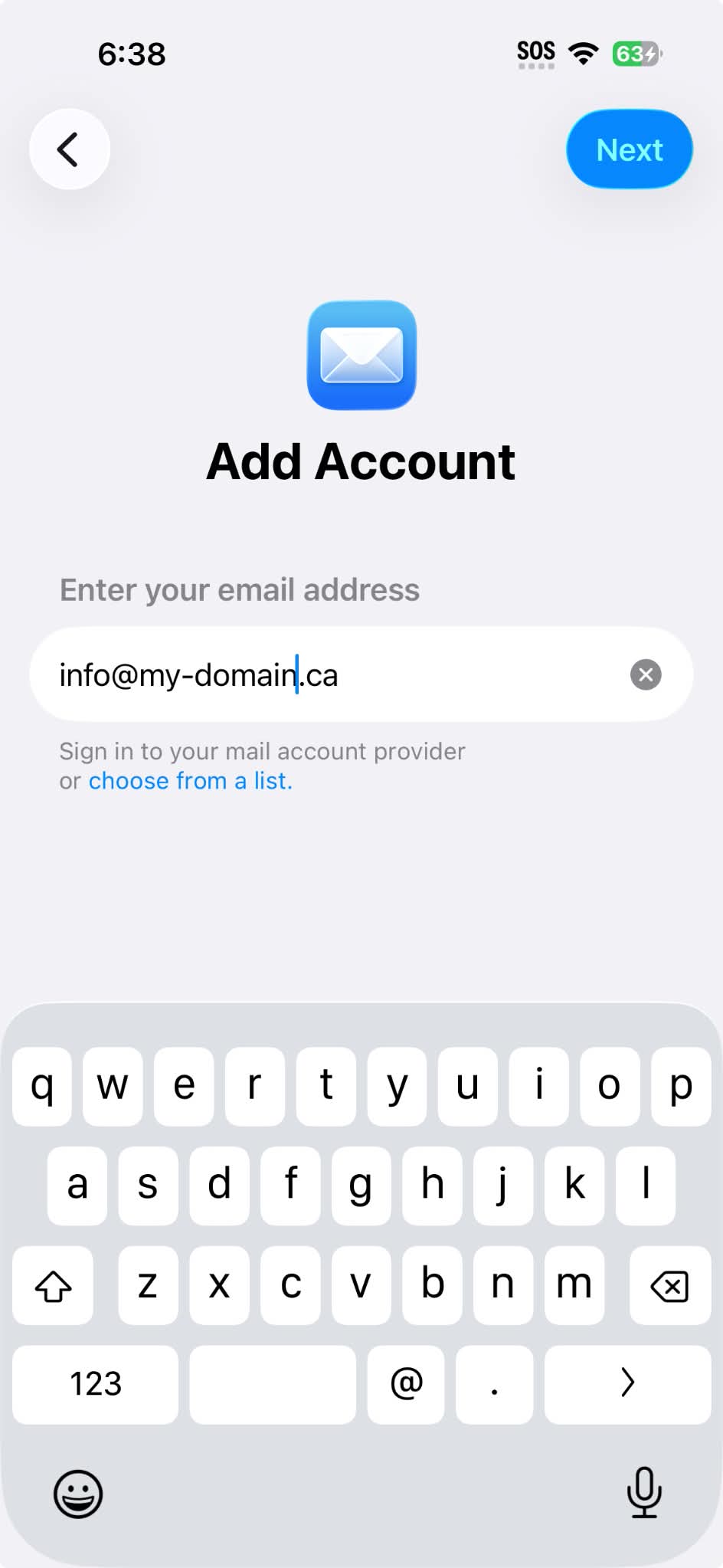
Enter your email and click "Next"
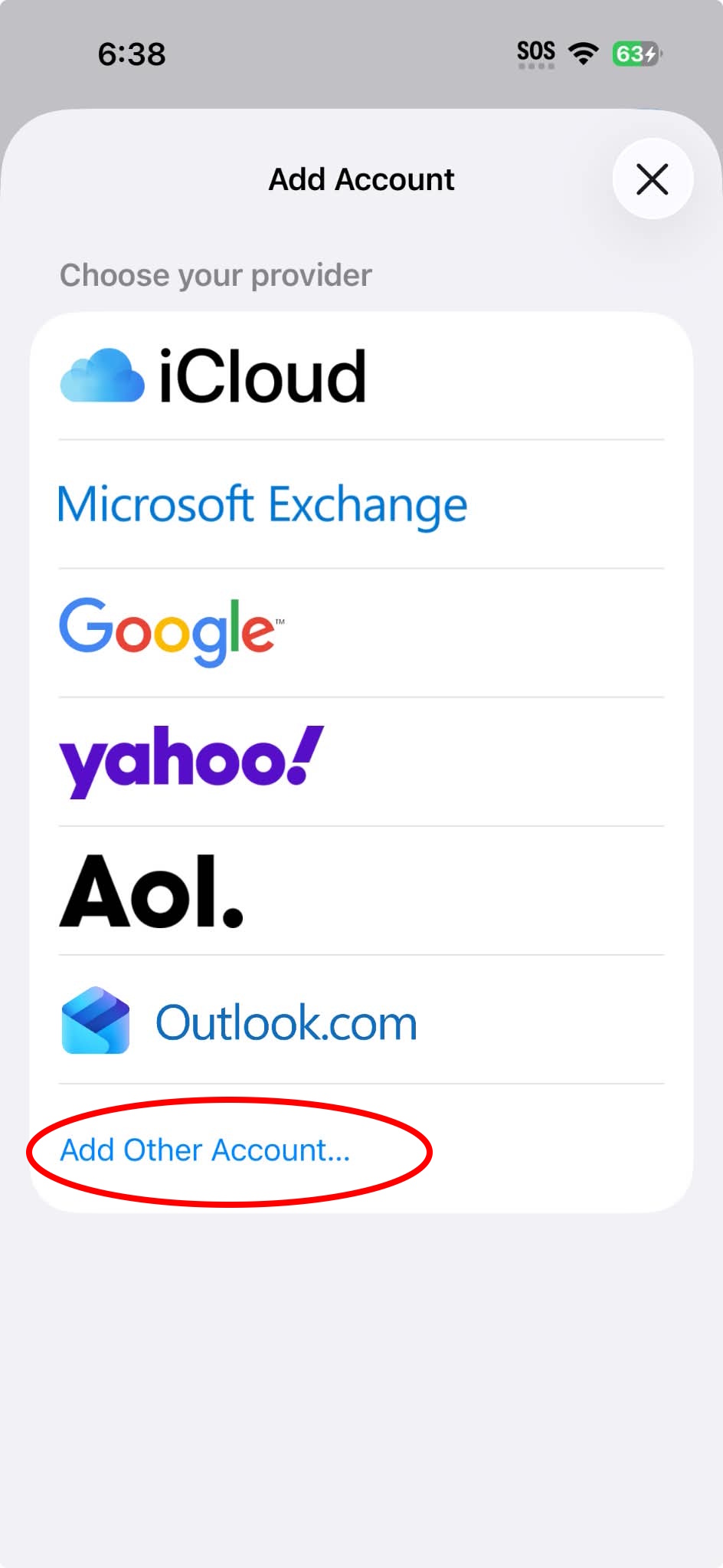
Click "Add Other Account"
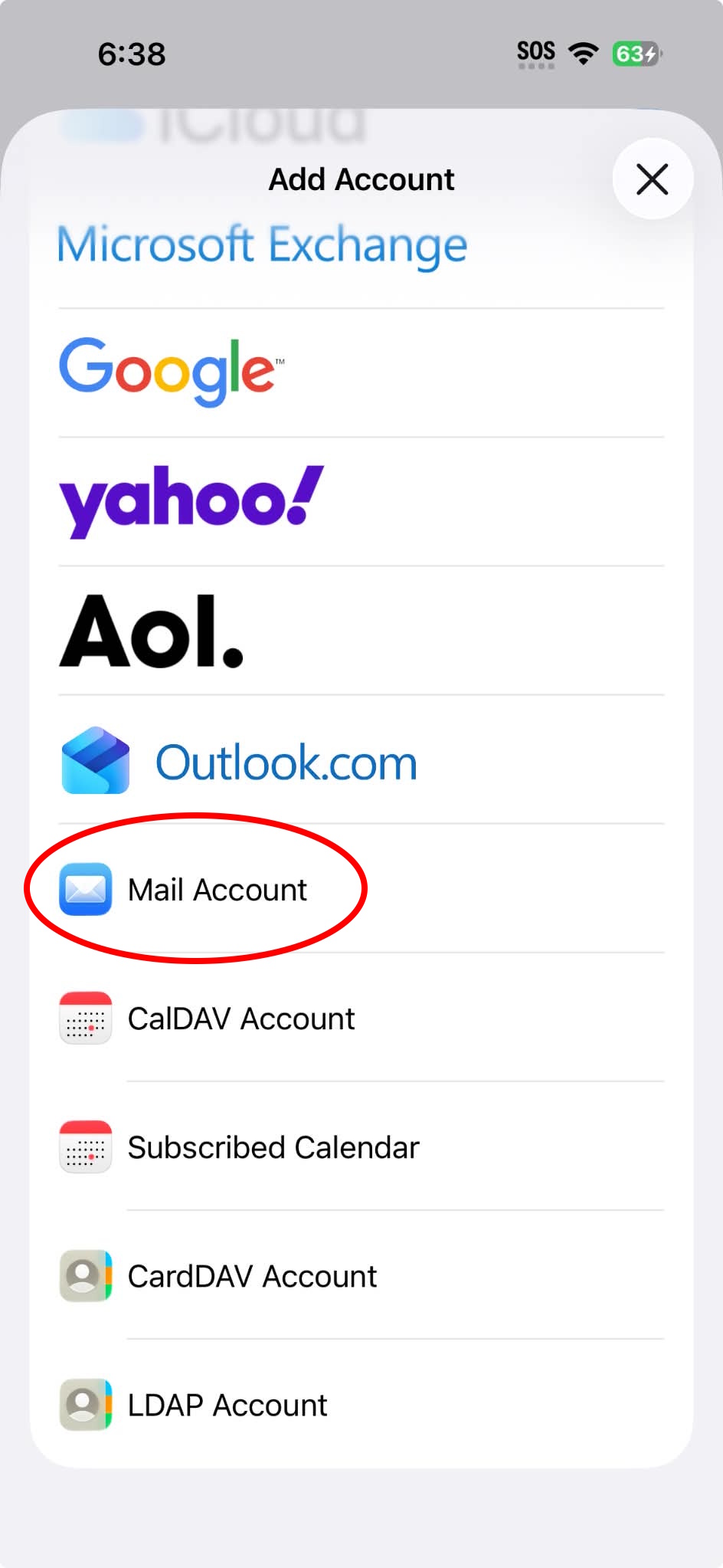
Then click "Mail Account"
Click "Mail Account"
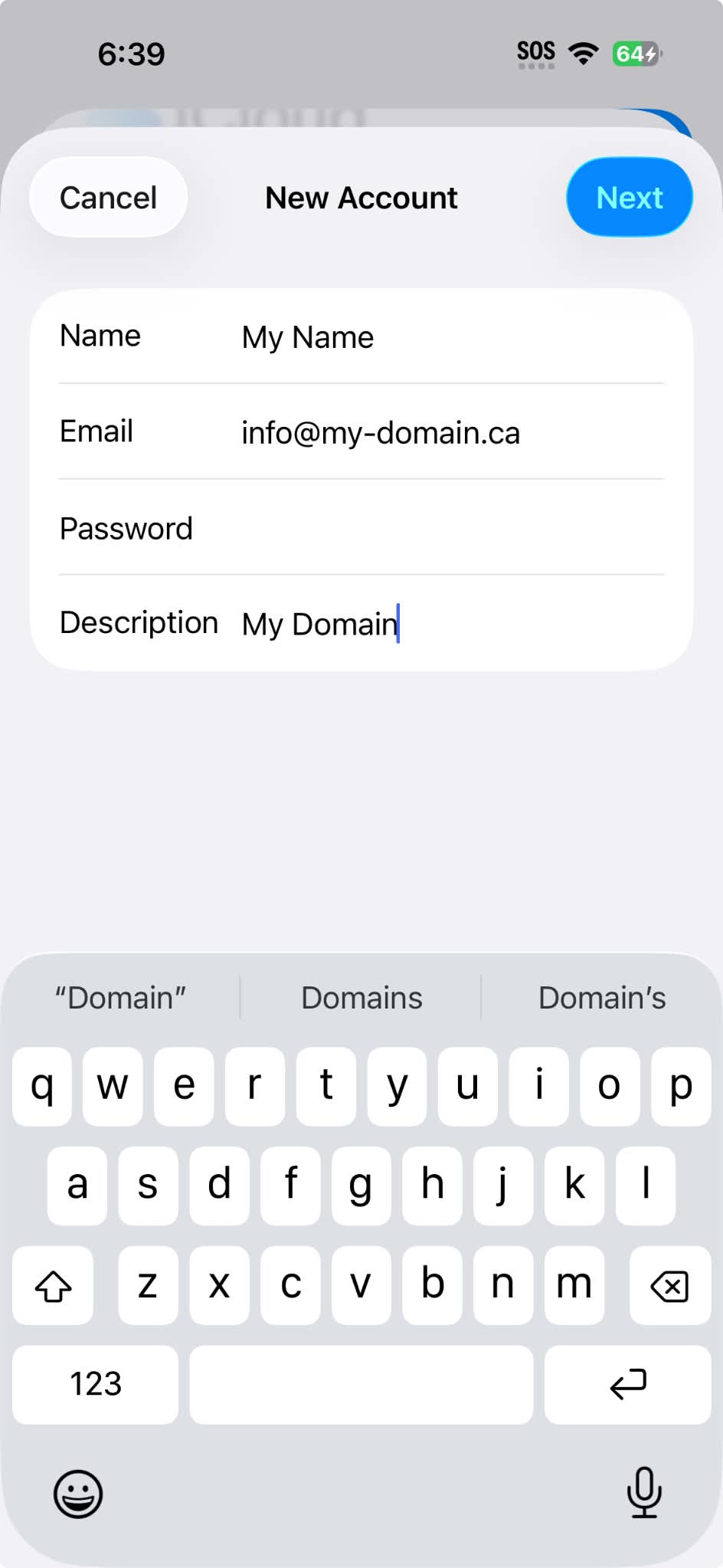
Enter your name, email, password, and a description for the account. Click Next.
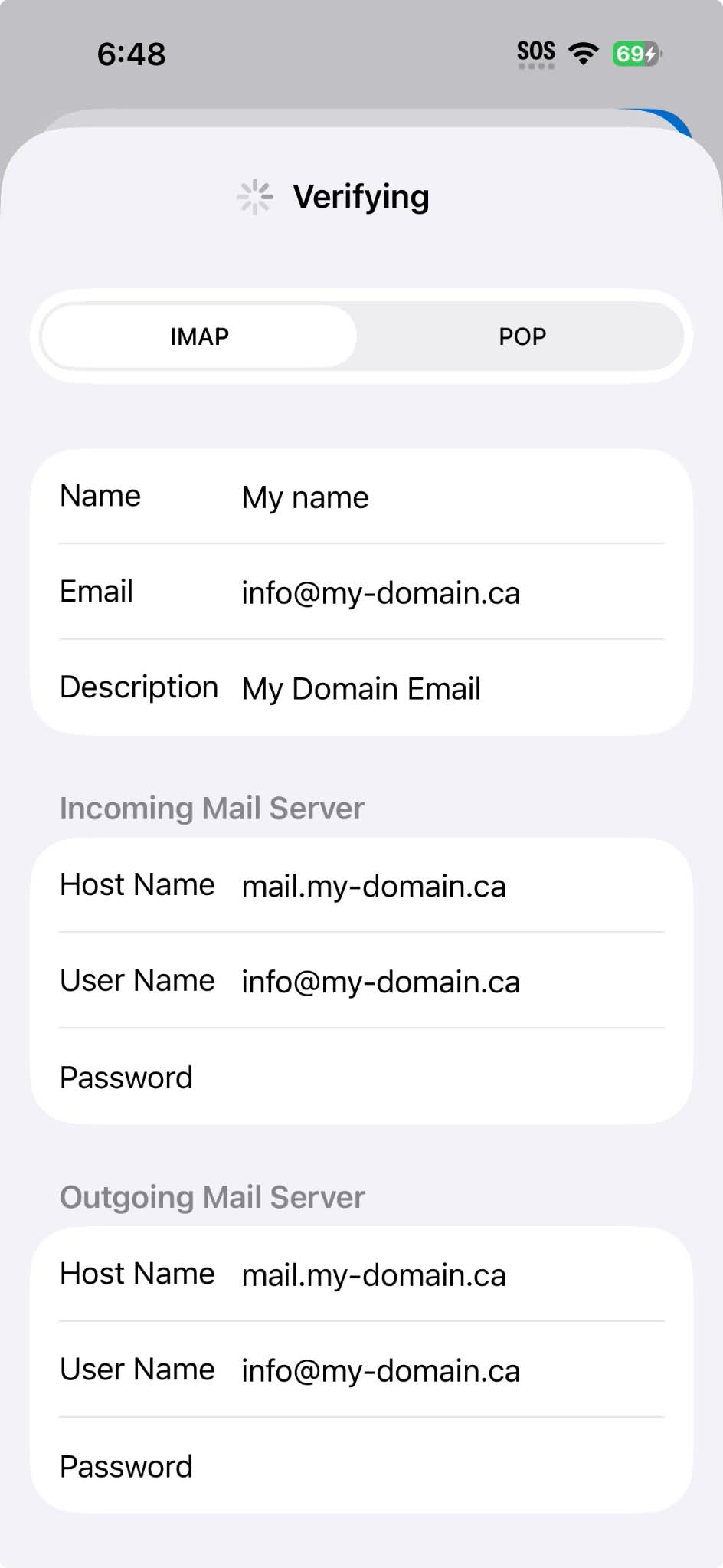
Check your name, email, password, and a description for the account.
For "Incoming Mail Server":
The host name is usually "mail." your domain (so if your email is "info@my-domain.ca", your mail server should be "mail.my-domain.ca".
Your username is just your full email address.
Enter your password as provided (carefully!)
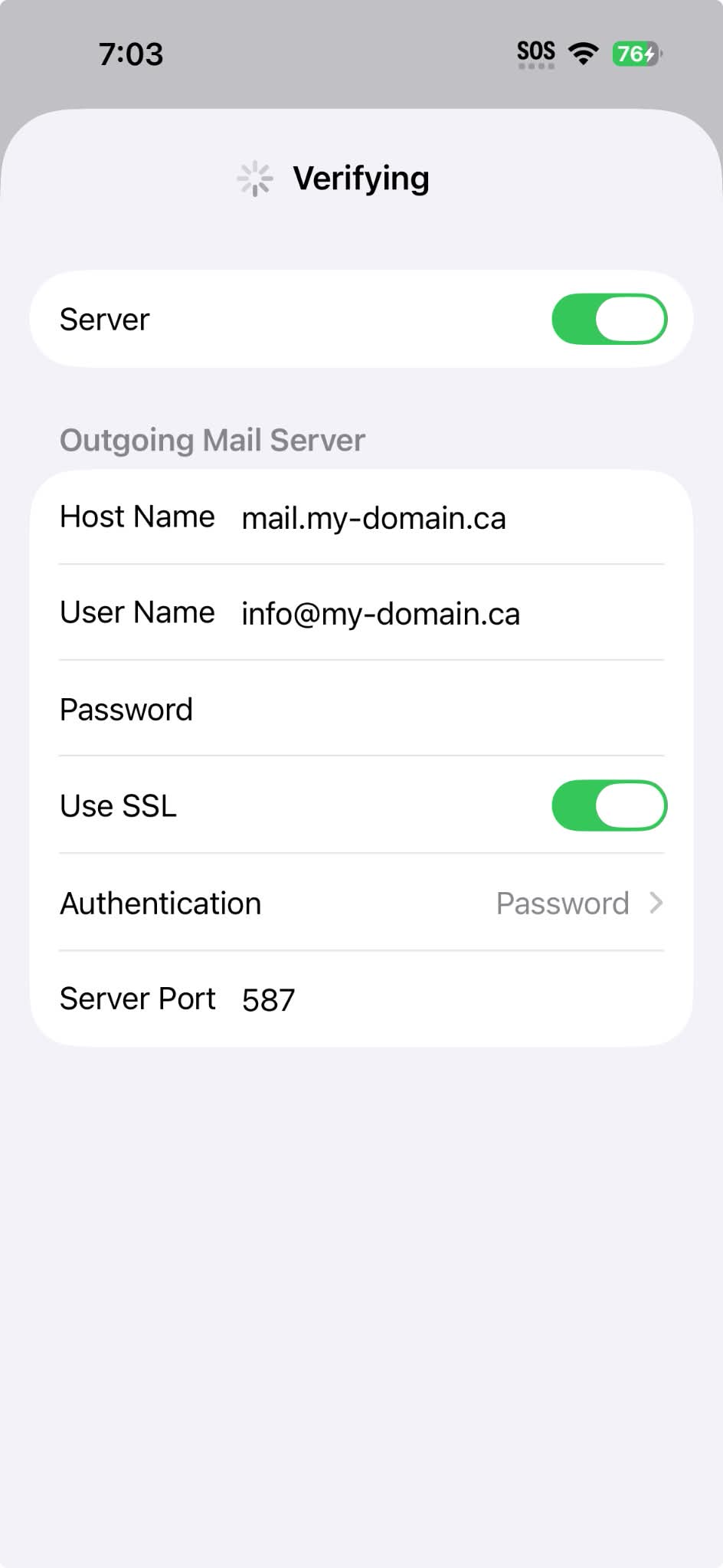
The "Outgoing Mail Server" should have the same settings as the "Incoming Mail Server".
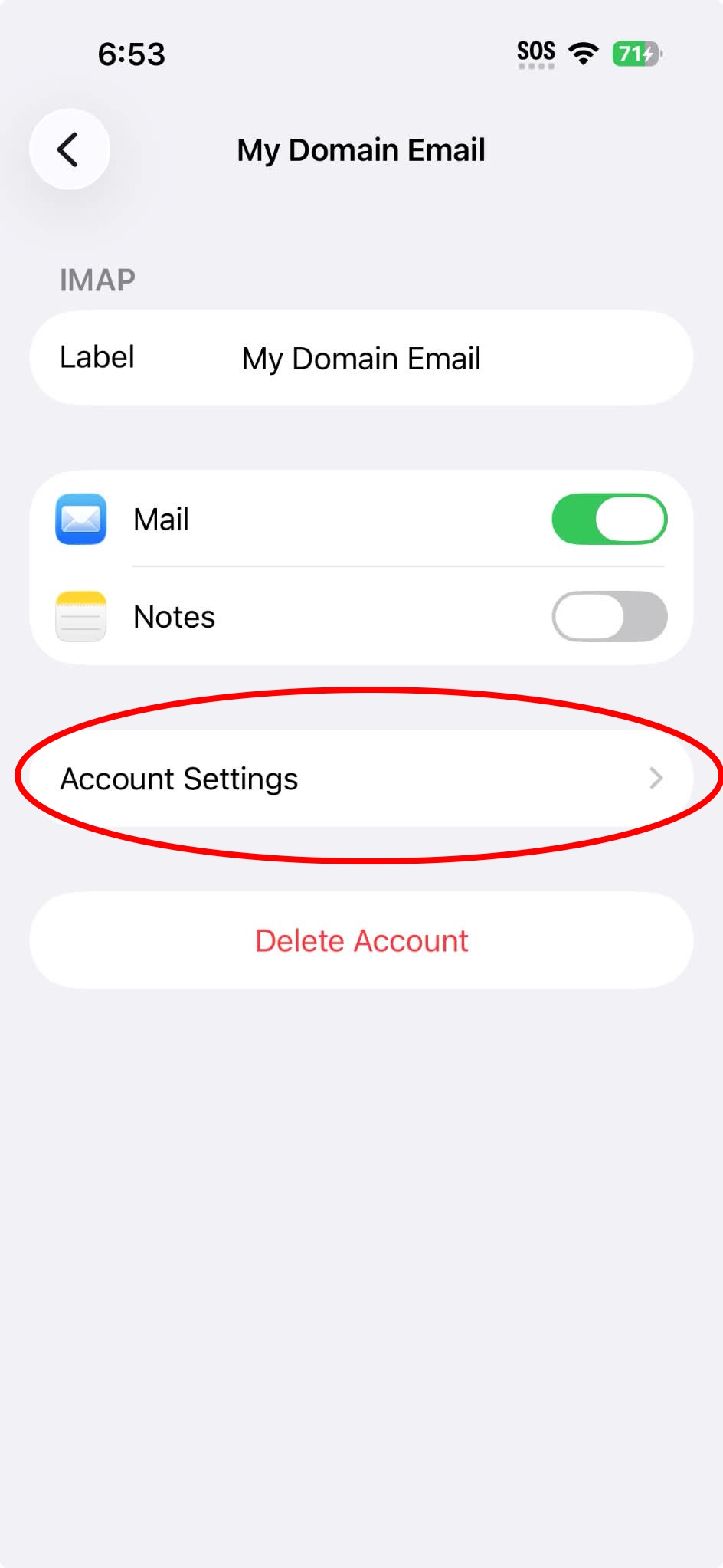
You should be done. If you'd like to double-check your server settings, go to the account, then "Account Settings".
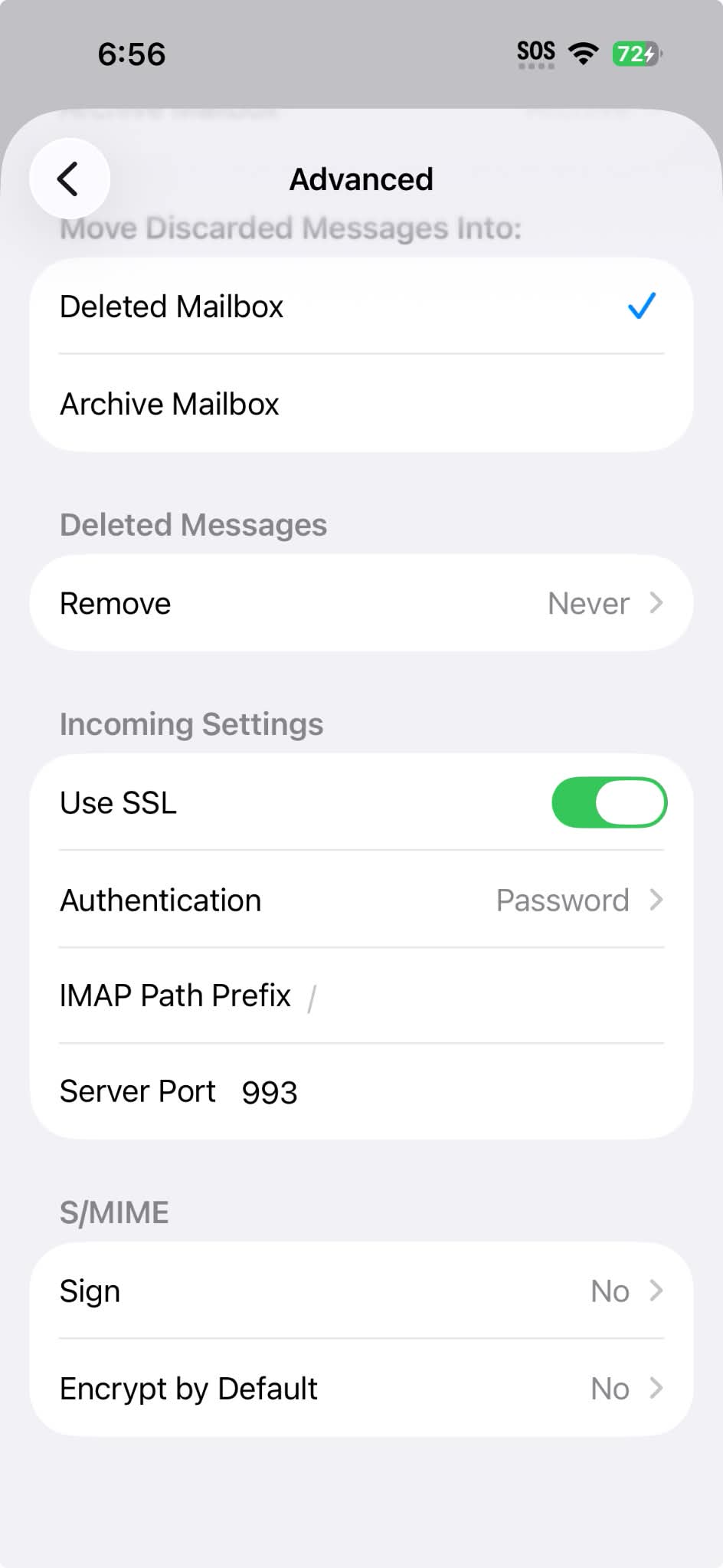
Click Advanced. "Use SSL" is optional, but recommended. The server port should be either 143 or 993.
To check outgoing settings, click "Outgoing Mail Server" (SMTP). "Use SSL" is optional, but recommended. The server port should be either 587 or 465.
FAQ Main
HOME
Go back